How To Reduce Your Webpage Size
Learn how to reduce the size of a webpage using Browser Developer Tools.

Studies show that every 100-millisecond delay in website loading times hurts conversion rates by 7%. In addition, page speed is one of the most critical factors in search engine ranking. One aspect of your page speed is the time it takes to download the page. So this guide teaches you how to optimize your page speed by reducing the size of a web page with the Browser Developer Tools: Coverage tab.
What Are Browser Developer Tools?
Browser Developer Tools let you test and debug your website (from the browser). Chrome DevTools is a modern example of a popular browser developer tool for the Google Chrome Browser. For more information on frontend (HTML, CSS, JS) debugging with developer tools, check out this list: The Developer Tools Guide.
The Coverage Tab
The Coverage tab in Chrome DevTools helps you find unused JavaScript and CSS code. Removing unused code will reduce the size of the files that the user downloads a page load. It will also lower the amount of time spent loading render-blocking resources. These optimizations result in a faster page load.
How To Open The Coverage Tab
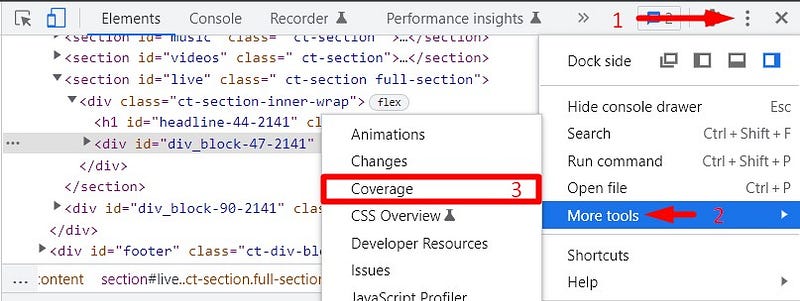
You must visit a webpage in your browser to open the coverage tab.
These actions are equivalent to Right Click > Inspect Element > Vertical Dots > More tools > Coverage.
How To Use The Coverage Tab
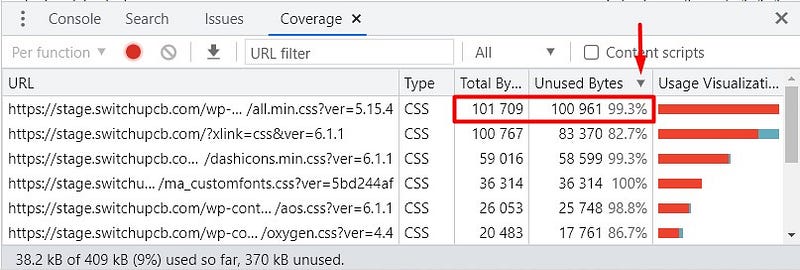
The coverage tab shows resources (by URL) loaded on the page alongside the resource’s file type (JS, CSS), byte size, unused byte size, and usage visualization. Code coverage is counted when code is executed, so the unused byte size shows the size of unexecuted code as the page loads. In order to reduce web page size, it’s recommended to focus on files with the highest number of unused bytes.
You can view the file’s contents by double-clicking the file name or navigating to it from the Sources tab.
My web page loaded a file with over 100,000 unused bytes in this case. That’s 100 KB or 0.1 MB! With 99.3% of the file unused, there was most likely code in the file that was never used. So I double-clicked the file all.min.css to determine what it was.
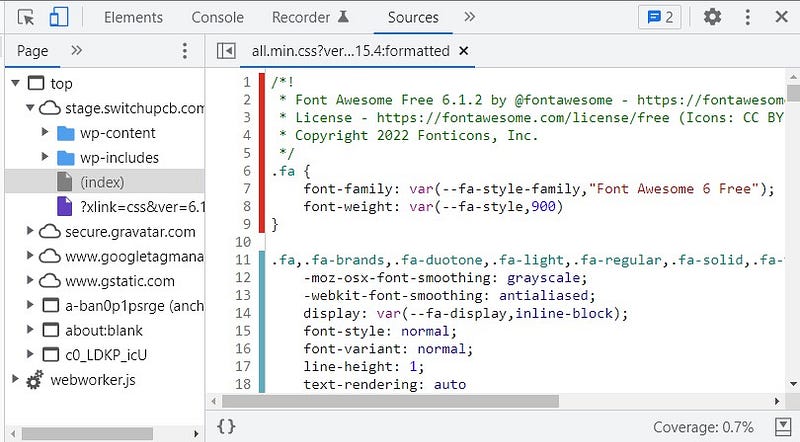
This Font Awesome CSS file contains brand icons used in the header of my website. However, it also includes icons from brands that I don’t use. So I can remove the CSS for these unused icons without causing any issues to my website.
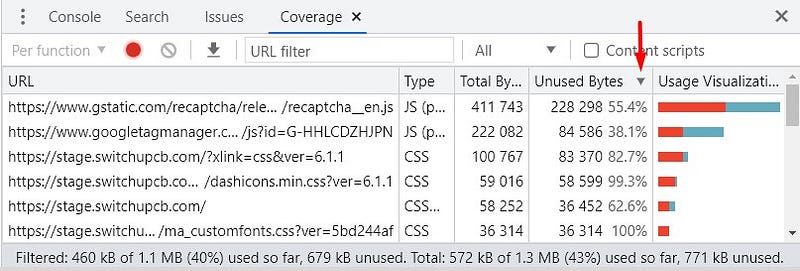
WARNING: Remember that this tool shows coverage, so code is only considered “used” when executed. This behavior means that conditional code may require interaction with the page to be marked as “used”. In other words, certain code that is used CAN be marked as “unused” when the page loads. So please remove unused code with caution.